
🚀Getting startedதொடங்குவது எப்படி
- Search ZONID on Google Play and install the app.
- Open the app and Allow Notifications and Location in the boxes that appear.
- Enter your 10-digit mobile number and tap Send OTP.
- Type the 6-digit OTP you receive by SMS.
- Tap the round picture at the top-left and save your name and address once. They fill in automatically when you order.
- Google Play-ல் ZONID என்று தேடி ஆப்பை install செய்யுங்கள்.
- ஆப்பைத் திறந்து, வரும் பெட்டிகளில் Notifications மற்றும் Location அனுமதியை Allow செய்யுங்கள்.
- உங்கள் 10 இலக்க மொபைல் எண்ணை உள்ளிட்டு Send OTP தட்டுங்கள்.
- SMS-ல் வரும் 6 இலக்க OTP-ஐ உள்ளிடுங்கள்.
- மேல் இடது மூலையில் உள்ள வட்டப் படத்தைத் தட்டி, உங்கள் பெயர், முகவரி ஆகியவற்றை ஒரு முறை சேமியுங்கள். ஆர்டர் செய்யும்போது அவை தானாக நிரம்பும்.
🏠Home screenமுகப்புப் பக்கம்
After login you will see these big cards:
Login செய்ததும் முகப்புப் பக்கத்தில் இந்த பெரிய அட்டைகள் தெரியும்:
🛍️Customer: Customer Order Appவாடிக்கையாளர்: Customer Order App
What you find inside:
இதைத் திறந்ததும் உள்ள வசதிகள்:
🔍 Search (AI Search)தேடல் (AI Search)
Type or speak 🎤 what you need, e.g. "medical shop nearby". Normal shops and Online shops both appear.
தேவையானதை எழுதியோ 🎤 பேசியோ தேடுங்கள். எ.கா. "அருகில் மருந்துக் கடை". சாதாரண கடைகள், Online கடைகள் இரண்டும் வரும்.
📍 Nearby Shopsஅருகிலுள்ள கடைகள் (Nearby Shops)
A list of normal shops near you. Tap a shop to see the address and distance. Tap Map to find the way.
உங்கள் இடத்தின் அருகே உள்ள சாதாரண கடைகளின் பட்டியல். கடையைத் தொட்டு முகவரி, தூரத்தைப் பாருங்கள். Map தட்டி வழி காணுங்கள்.
🧾 Order Bookingஆர்டர் புக்கிங் (Order Booking)
To order from Online shops:
- Open Order Booking and choose a shop.
- Add items to the Cart.
- Tap Place Order.
- When the owner accepts you get a notification. When it says Ready for Pickup, go to the shop and collect your items.
- See the status of all your orders in My Orders.
- Order Booking-ஐத் திறந்து கடையைத் தேர்ந்தெடுங்கள்.
- பொருட்களை Cart-ல் சேருங்கள்.
- Place Order தட்டுங்கள்.
- கடை உரிமையாளர் ஏற்றதும் அறிவிப்பு வரும்; Ready for Pickup என்று வந்ததும் கடைக்குப் போய் பொருளை வாங்குங்கள்.
- My Orders-ல் உங்கள் எல்லா ஆர்டர்களின் நிலையையும் பார்க்கலாம்.
There is no home delivery at present; collect your items at the shop.இப்போது வீட்டுக்கு டெலிவரி இல்லை; பொருளை கடையில் நேரில் வாங்க வேண்டும்.
🆔 Location IDLocation ID
Your own ZONID number for a place. Stand there with GPS on and create it. You can share it so others can find that place.
உங்கள் இடத்துக்கான தனி ZONID எண். நின்ற இடத்தில் GPS ஆன் செய்து உருவாக்குங்கள்; மற்றவர்களுக்கும் பகிரலாம்; அவர்கள் அந்த இடத்தைக் கண்டுபிடிக்கலாம்.
🚕 Taxi & Auto, Vehicles & DriversTaxi & Auto, வாகனங்கள் & ஓட்டுநர்கள்
Find taxi, auto, load auto, lorry, JCB, van and more, tap a vehicle and book. The owner gets your request at once and you get a notification when it is accepted. Booking is done only here.
டாக்ஸி, ஆட்டோ, Load Auto, லாரி, JCB, வேன் போன்றவற்றைத் தேடி, வாகனத்தைத் தொட்டு புக் செய்யுங்கள். உரிமையாளருக்கு உடனே கோரிக்கை போகும்; அவர் ஏற்றதும் உங்களுக்கு அறிவிப்பு வரும். புக்கிங் இங்கே மட்டுமே.
💇 Salon & Beauty Parlourசலூன் & பியூட்டி பார்லர்
Find them as Online shops in Order Booking and book there.
இவற்றையும் Order Booking-ல் Online கடையாகத் தேடி புக் செய்யலாம்.
🗺️Maps and directionsவரைபடமும் வழியும்
Tap Map on any shop to open a big map.
எந்தக் கடையிலும் Map தட்டினால் பெரிய வரைபடம் திறக்கும்.
- Blue line: the route from where you are to the shop.
- Blue box at the top: the next turn, like "58 m – Turn left".
- Small bar at the bottom: total distance and time.
- Tap ☰ to see the list of all turns.
- Tap 🧭 Google Maps to start navigation in Google Maps.
- நீல நிறக் கோடு: உங்கள் இடத்திலிருந்து கடைக்கு செல்லும் வழி.
- மேலே நீல பெட்டி: "58 m – இடதுபுறம் திரும்புங்கள்" போன்ற அடுத்த திருப்பம்.
- கீழே ஒரு சிறிய பட்டை: மொத்த தூரம் • நேரம்.
- ☰ தட்டினால் எல்லா திருப்பங்களின் பட்டியல் தெரியும்.
- 🧭 Google Maps தட்டினால் Google Maps-ல் வழிகாட்டுதல் தொடங்கும்.
🏪Shop owner: Shop Owner Appகடை உரிமையாளர்: Shop Owner App
If ZONID staff registered your shop
உங்கள் கடை ZONID குழுவால் பதிவு செய்யப்பட்டிருந்தால்
- A ZONID staff member visits your shop and registers your name and mobile number.
- You receive a WhatsApp message.
- Install the ZONID app and login with the same mobile number.
- Your shop appears in your Shop Owner App automatically.
- ZONID ஊழியர் உங்கள் கடைக்கு வந்து, உங்கள் பெயர், மொபைல் எண்ணைப் பதிவு செய்வார்.
- உங்களுக்கு WhatsApp செய்தி வரும்.
- ZONID ஆப்பை install செய்து, அதே மொபைல் எண்ணில் Login செய்யுங்கள்.
- உங்கள் கடை தானாக உங்கள் Shop Owner App-ல் வந்துவிடும்.
Every day
தினசரி பயன்பாடு
- Open the Shop Owner App and tap your shop.
- Add products: name, price, photo, stock. Use Camera or Gallery for photos.
- Switch your shop Online ON. Only then can customers place orders.
- When an order comes you get a sound / notification. Tap Accept or Reject.
- When the items are ready, tap Ready for Pickup.
- When the customer has collected the items, the order moves to completed.
- Shop Owner App-ஐத் திறந்து உங்கள் கடையைத் தொடுங்கள்.
- பொருட்களைச் சேருங்கள்: பெயர், விலை, படம், இருப்பு (stock). படத்துக்கு Camera அல்லது Gallery பயன்படுத்தலாம்.
- கடையை Online ஆக ON செய்தால் மட்டுமே வாடிக்கையாளர்கள் ஆர்டர் செய்ய முடியும்.
- ஆர்டர் வந்ததும் ஒலி / அறிவிப்பு வரும். Accept அல்லது Reject தட்டுங்கள்.
- பொருள் தயாரானதும் Ready for Pickup தட்டுங்கள்.
- வாடிக்கையாளர் பொருளைப் பெற்றதும் ஆர்டர் முடிந்த நிலைக்கு மாறும்.
🚕Taxi, auto and vehicle ownersடாக்ஸி, ஆட்டோ, வாகன உரிமையாளர்
The Taxi & Auto card on the home screen is for you.
முகப்பில் உள்ள Taxi & Auto அட்டை உங்களுக்கானது.
- Tap the Taxi & Auto card.
- In My vehicles register your vehicle: type, vehicle number and your details.
- After ZONID verifies it, your vehicle is visible to customers.
- When a customer books, it appears in Booking requests. Accept or reject it.
- Taxi & Auto அட்டையைத் தொடுங்கள்.
- என் வாகனங்கள் பகுதியில் உங்கள் வாகனத்தை பதிவு செய்யுங்கள்: வகை, வண்டி எண், உங்கள் விவரம்.
- ZONID சரிபார்த்த பிறகு உங்கள் வாகனம் வாடிக்கையாளர்களுக்குத் தெரியும்.
- வாடிக்கையாளர் புக் செய்தால் புக்கிங் கோரிக்கைகள்-ல் தெரியும்; அதை ஏற்கவோ மறுக்கவோ செய்யுங்கள்.
Booking cannot be made from this card; that is only in the customer part.
Owners of JCB, lorry, tractor, crane, ambulance, acting driver and similar can also be registered by field staff as an Online shop; you get a notification when a booking comes.
இந்த அட்டையில் புக்கிங் செய்ய முடியாது; அது வாடிக்கையாளர் பகுதியில் மட்டுமே.
JCB, லாரி, டிராக்டர், கிரேன், ஆம்புலன்ஸ், Acting Driver போன்றவற்றின் உரிமையாளர்களையும் களப்பணியாளர் Online கடையாக பதிவு செய்யலாம்; புக்கிங் வந்தால் உங்களுக்கு அறிவிப்பு வரும்.
📝ZONID field staff: adding a shopZONID களப்பணியாளர்: கடை சேர்த்தல்
The Add Shop (Field) card is visible only to you.
முகப்பில் Add Shop (Field) அட்டை உங்களுக்கு மட்டும் தெரியும்.
- Stand outside, at the main entrance of the shop with GPS ON.
- Tap + Add a new shop here. The place where you stand becomes the shop location.
- Tap the shop type box, search, tick the type in the list and tap Done.
- Fill in the shop name, address, phone and the shop photo (📷 Camera or 🖼 Gallery), then Save.
- Enter the owner's name and mobile number, tick the permission box and Save.
- For an Online shop, add its products.
- Tap the green Send WhatsApp button, press Send in WhatsApp, come back and tap I sent the message.
- Now Add the next shop is available.
- கடையின் வெளியே, முதன்மை வாசலில் நில்லுங்கள். போனில் GPS ON.
- + இங்கே புதிய கடை சேர் தட்டுங்கள். நீங்கள் நிற்கும் இடமே கடையின் இடமாகப் பதிவாகும்.
- கடை வகை பெட்டியைத் தொட்டு, தேடி, பட்டியலிலிருந்து வகையைத் தேர்ந்தெடுத்து Done தட்டுங்கள்.
- கடையின் பெயர், முகவரி, போன் எண், கடைப் படம் (📷 Camera அல்லது 🖼 Gallery) ஆகியவற்றை நிரப்பி Save.
- உரிமையாளர் பெயர், மொபைல் எண் உள்ளிட்டு, அனுமதி பெட்டியில் ✔ இட்டு Save.
- Online கடை என்றால் பொருட்களைச் சேருங்கள்.
- WhatsApp அனுப்பு பச்சை பட்டனைத் தட்டி, WhatsApp-ல் Send செய்து, திரும்பி வந்து செய்தி அனுப்பினேன் தட்டுங்கள்.
- இப்போது அடுத்த கடை சேர் தெரியும்.
The My added shops list shows Today, Total and Owner joined counts. A shop without owner details has an orange Enter owner details button.
நான் சேர்த்த கடைகள் பட்டியலில் இன்று, மொத்தம், உரிமையாளர் இணைந்தவை எண்ணிக்கை தெரியும். உரிமையாளர் விவரம் இல்லாத கடையில் ஆரஞ்சு உரிமையாளர் விவரம் உள்ளிடு பட்டன் வரும்.
🔔Why the app needs permissionsஅனுமதிகள் ஏன் தேவை
| 📍 Location | Nearby shops, distance, map, Location IDஅருகிலுள்ள கடைகள், தூரம், வரைபடம், Location ID |
| 🔔 Notifications | Order and booking status alertsஆர்டர் / புக்கிங் நிலை அறிவிப்புகள் |
| 📷 Camera / Gallery | Shop, product and profile photosகடை, பொருள், சுயவிவரப் படங்கள் |
| 🎤 Microphone | Voice search (only when you tap the mic button)குரல் தேடல் (மைக் பட்டனைத் தொட்டால் மட்டும்) |
You can change these any time in phone Settings → Apps → ZONID → Permissions.
இவற்றை எப்போது வேண்டுமானாலும் போனின் Settings → Apps → ZONID → Permissions-ல் மாற்றலாம்.
❓Common questionsபொதுவான சந்தேகங்கள்
I did not receive the OTP.OTP வரவில்லை.
Check your internet / signal and the number. Wait a few seconds and tap Resend.
இணையம் / சிக்னல் சரியா என்று பாருங்கள். சில வினாடிகள் காத்திருந்து Resend தட்டுங்கள். எண்ணும் சரியா என்று பாருங்கள்.
I cannot see shops nearby.அருகில் கடைகள் தெரியவில்லை.
Check that phone Location (GPS) is ON and the app has Location permission. Try in an open place.
போனின் Location (GPS) ON ஆக இருக்கிறதா, ஆப்புக்கு Location அனுமதி உள்ளதா என்று பாருங்கள். வெளியே திறந்த இடத்தில் முயலுங்கள்.
My shop does not appear in the app.என் கடை ஆப்பில் வரவில்லை.
Did you login with the same mobile number that the staff member registered? A different number will not show it. Ask the staff to correct the number.
ஊழியர் பதிவு செய்த அதே மொபைல் எண்ணில் Login செய்தீர்களா என்று பாருங்கள். வேறு எண் என்றால் அது தெரியாது. ஊழியரிடம் சரியான எண்ணை மாற்றச் சொல்லுங்கள்.
Customers cannot see my shop.வாடிக்கையாளர்களுக்கு என் கடை தெரியவில்லை.
New shops wait for ZONID verification. For an Online shop also check that you switched Online ON. If it takes long, message us on WhatsApp.
புதிய கடைகள் ZONID சரிபார்ப்புக்குக் காத்திருக்கும். Online கடை என்றால் Online ON செய்துள்ளீர்களா என்றும் பாருங்கள். தாமதமானால் WhatsApp செய்யுங்கள்.
The order alarm does not ring.ஆர்டர் அலாரம் அடிக்கவில்லை.
Allow Notifications, set Battery to Unrestricted, keep the phone off silent / DND and keep the shop Online.
Notifications அனுமதி கொடுங்கள், Battery-ஐ Unrestricted ஆக்குங்கள், போன் சைலன்ட் / DND-ல் இல்லாமல் இருக்கட்டும், கடை Online-ல் இருக்கட்டும்.
The camera does not open for photos.புகைப்படம் எடுக்க Camera வரவில்லை.
Update the app. If the camera still does not open, choose the photo from Gallery.
ஆப்பைப் புதுப்பியுங்கள். Camera திறக்காவிட்டால் Gallery மூலம் படம் தேர்ந்தெடுக்கலாம்.
My profile became empty again.சுயவிவரம் மீண்டும் காலியாகிவிட்டது.
The profile is saved only on your phone. Uninstalling the app or clearing its data removes it. Enter and save it again.
சுயவிவரம் உங்கள் போனில் மட்டுமே சேமிக்கப்படும். ஆப்பை uninstall செய்தாலோ data clear செய்தாலோ அழியும்; மீண்டும் உள்ளிட்டுச் சேமியுங்கள்.
🏢About the companyZONID நிறுவனம்
ZONID is built and operated by Quczo Private Limited, a private limited company in India.
ZONID ஆப்பை உருவாக்கி இயக்குவது Quczo Private Limited (பிரைவேட் லிமிடெட் நிறுவனம்), இந்தியா.
- Companyநிறுவனம்
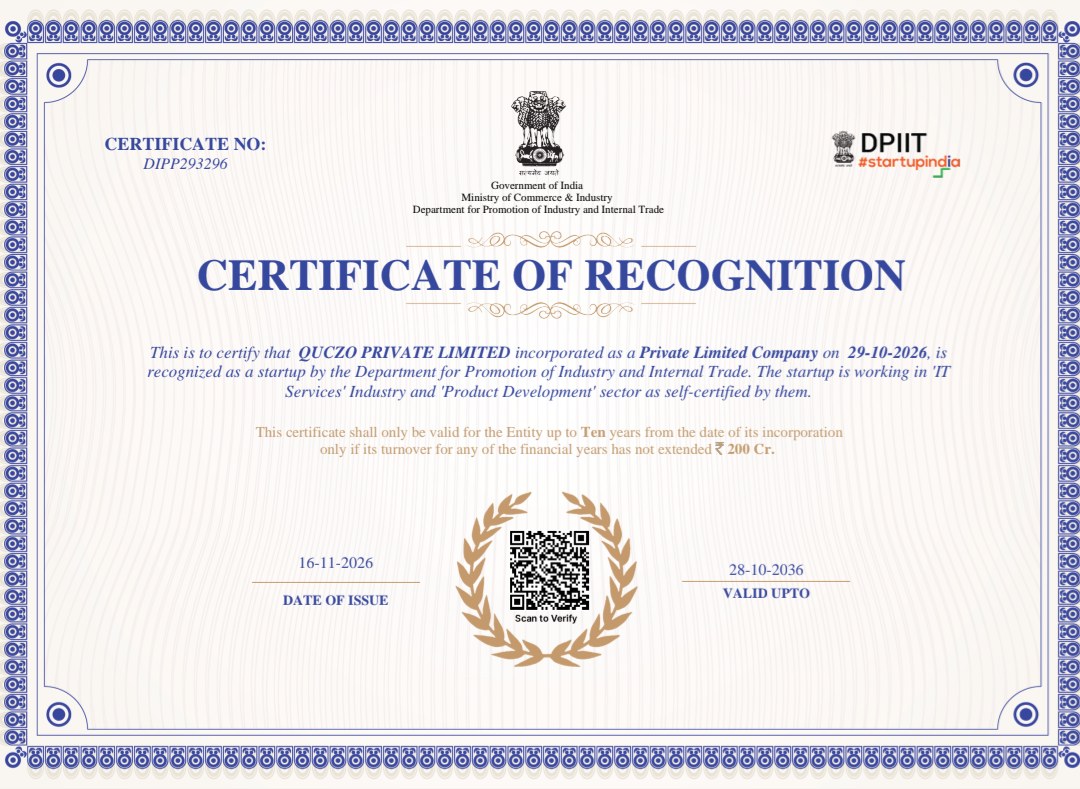
- QUCZO PRIVATE LIMITED
- CIN
- U63122TZ2026PTC041385
- Incorporatedபதிவு
- 29 October 2026, Erode, Tamil Nadu29 அக்டோபர் 2026, ஈரோடு, தமிழ்நாடு
- Recognitionஅங்கீகாரம்
- DPIIT Recognised Startup · Certificate No.சான்றிதழ் எண் DIPP293296
- Addressமுகவரி
- No.116/1, E.V.N. Road, Rajeshwari Complex, Veerappanchatram, Erode – 638004, Tamil Nadu
💬Help / report a problemஉதவி / புகார்
Found a problem, a wrong listing or have an idea? Message us on WhatsApp.
பிரச்சனை, தவறான தகவல் அல்லது ஆலோசனை இருந்தால் WhatsApp-ல் எங்களுக்கு எழுதுங்கள்.